
Connect your iPhone and iPad
AviaGPS runs on your iPhone and sends its position to ForeFlight on your iPad. You do not need a cellular iPad to receive this feed. You do need AviaGPS Pro, a compatible version of ForeFlight, and a local network that lets the devices communicate. ForeFlight is purchased separately.
Still choosing a position source? Read ForeFlight on an iPad without GPS to compare your options.
- Set up AviaGPS on the iPhone. Tap Continue under 1. Precise Location, then choose Allow While Using App in the system prompt, with Precise Location enabled. Tap Continue under 2. Local Network and allow the system prompt. Complete the terms acknowledgment and activate or restore Pro.
- Join the same local network. Connect both devices to the same trusted Wi-Fi network. For the intended Personal Hotspot setup, open Settings → Personal Hotspot → Allow Others to Join on the iPhone, then select that iPhone under Settings → Wi-Fi on the iPad. Hotspot availability depends on your carrier and plan.
- Open ForeFlight on the iPad. Keep it visible in the foreground and allow Local Network access when prompted. Return to AviaGPS on the iPhone. Sharing starts automatically on a fresh app launch when its requirements are met. If you previously tapped Stop Sharing, tap Resume Sharing to continue.
- Choose the receiving iPad if asked. AviaGPS selects a single discovered receiver automatically. If several appear, use Choose ForeFlight Device to select your intended iPad. Give discovery about 10–15 seconds after both apps are open.
- Verify reception in ForeFlight. Follow the checks below. A status in AviaGPS confirms activity on the iPhone, not reception or source selection on the iPad.
Use AviaGPS as the ForeFlight source
With sharing active on your iPhone, follow these steps on your iPad. The screenshots show the actual ForeFlight controls; their appearance may vary with your version.
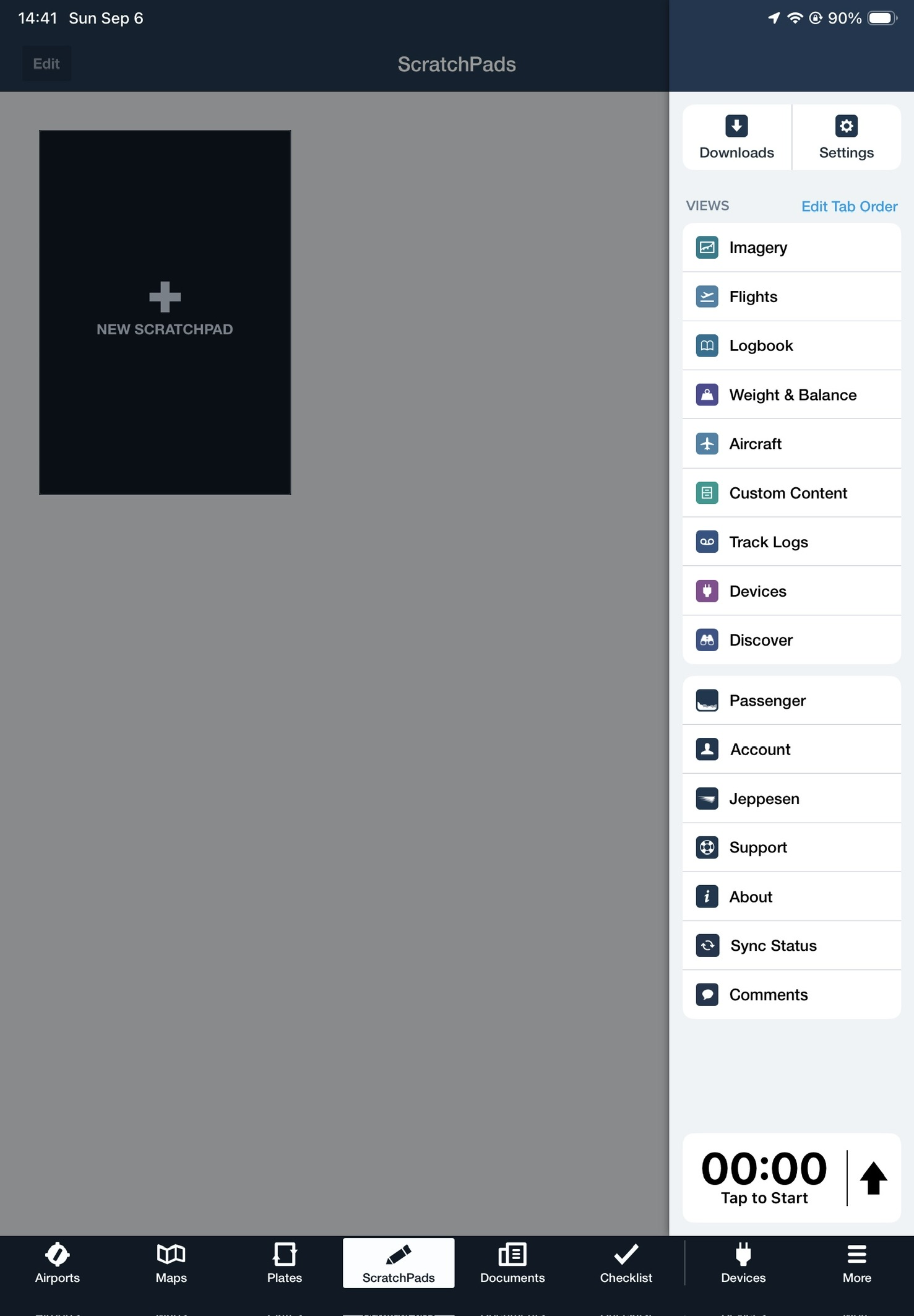
1 Open Devices
Tap More → Devices. If Devices is already in your bottom tab bar, tap it directly.
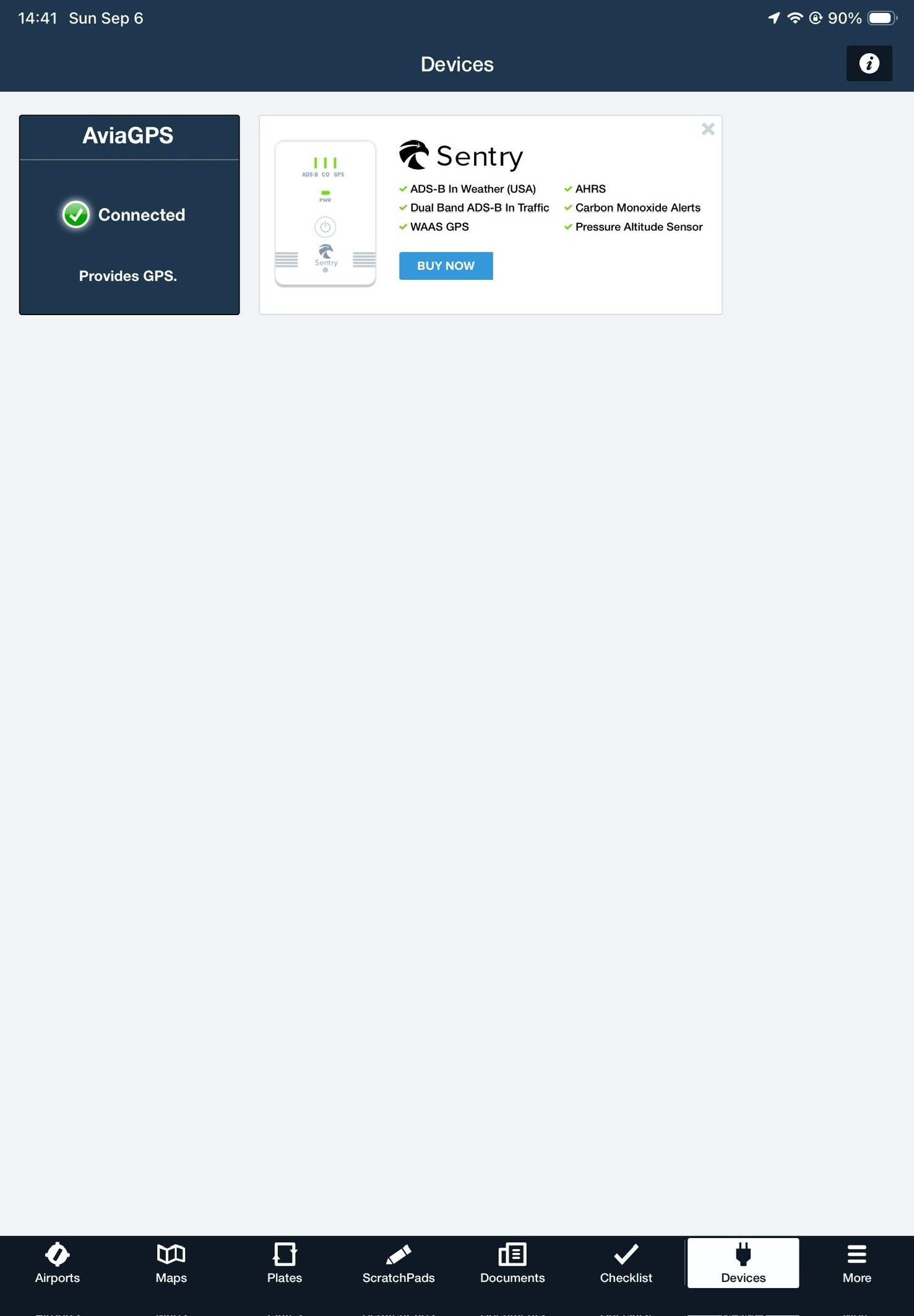
2 Open AviaGPS
Find the AviaGPS tile. It should show Connected and Provides GPS. Tap the tile.
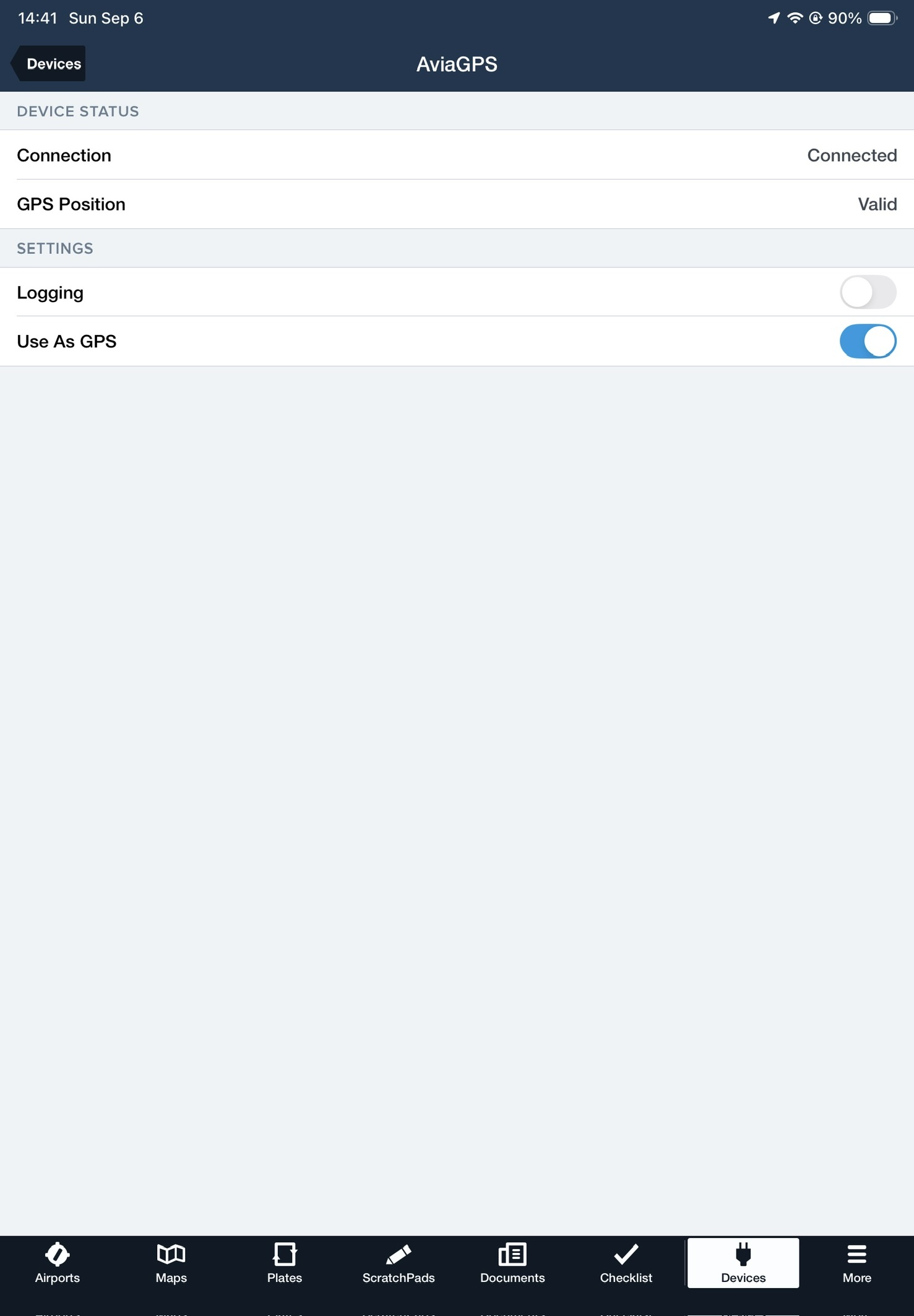
3 Turn on Use As GPS
Check Connection: Connected and GPS Position: Valid. Turn Use As GPS on; it is blue in this screenshot. Logging is a separate setting and is not required to select the GPS source.
Then check the position on Maps
Return to Maps and check the GPS status/accuracy and displayed position against your known location. If another receiver is connected, check its source settings too. On the ground, temporarily disconnect other optional GPS sources to isolate the test, then recheck after reconnecting.
No AviaGPS tile? Start with connection troubleshooting. If your screen looks different or you cannot confirm the source, email us with your ForeFlight version and a screenshot.
ForeFlight documents how GDL 90 devices connect and report position. Its GPS Accuracy guide explains the map's accuracy display. ForeFlight does not test or support third-party devices using the GDL 90 interface; contact AviaGPS for relay issues.
Fix location and network permissions
In AviaGPS, open Settings & Help → Check Permissions. Completed steps are checked automatically, with Local Network checked again when you open this screen. If access cannot be confirmed, check your Wi-Fi connection and tap Check Again. That button is unavailable while a check runs; Done remains available at any time. Reviewing permissions keeps an active sharing session running.
Location unavailable or Precise Location off
- On the iPhone, open Settings → Privacy & Security → Location Services and turn Location Services on.
- Select AviaGPS, choose While Using the App, and turn Precise Location on. AviaGPS does not require an “Always” permission option.
- Return to AviaGPS and check the GPS section. If it still has no usable fix, move to a safe outdoor location with a clearer sky view and allow time for a fresh update.
If AviaGPS is missing from the list, open its Settings & Help → Check Permissions and tap Continue under 1. Precise Location. If a setting is locked, check Screen Time restrictions or ask the administrator of a managed device.
Local Network denied, unavailable, or missing
- On the iPhone, open Settings → Privacy & Security → Local Network and turn AviaGPS on.
- On the iPad, use the same path and turn ForeFlight on.
- Return to AviaGPS and use Settings & Help → Check Permissions. Keep ForeFlight open on the iPad and wait for discovery.
If AviaGPS has no switch yet, open Check Permissions and tap Continue under 2. Local Network to trigger its access request. If ForeFlight is missing, open it while connected to Wi-Fi and allow its network prompt when presented. A network check that times out can indicate an unavailable network; it does not always mean permission was denied.
For a missing position marker in ForeFlight, also check the iPad's Location Services → ForeFlight permissions and Precise Location. Follow ForeFlight's current iPad setup guidance for its recommended settings.
Apple's instructions: Location Services and Precise Location · Local Network access. Settings labels can vary by OS version.
Find the connection problem
“Searching for ForeFlight…” or no AviaGPS tile
- Confirm the iPad is actually joined to the iPhone hotspot or the same Wi-Fi network. Cellular internet on both devices does not connect them locally. Leave the iPhone's Personal Hotspot settings open while the iPad joins, then return to AviaGPS.
- Keep ForeFlight in the foreground on the iPad and AviaGPS active on the iPhone. Check that Pro is active and both devices have the required permissions.
- Try a trusted private network. Guest Wi-Fi, hotel/captive networks, and router “client isolation” settings can block device-to-device traffic even when internet works.
- If a VPN or network filter is active, check whether it allows local-network traffic. If permitted on your device, briefly pause it on the ground to test, then restore it. On managed devices, ask the administrator.
- Tap Stop Sharing, then Resume Sharing. If discovery still fails, reconnect the Wi-Fi connection and reopen both apps. Restart the devices if necessary, then repeat setup.
If the hotspot is unavailable or the iPad cannot join it, troubleshoot that connection first using Apple's Personal Hotspot guide. AviaGPS cannot enable a carrier feature or make an isolated network pass local traffic.
“Choose your ForeFlight device”
More than one receiver was discovered. In AviaGPS, use Choose ForeFlight Device to select the intended iPad. If names are ambiguous, close ForeFlight on other devices during the ground test and restart sharing. A device name is not proof of identity; use a network you trust.
“Waiting for a fresh location…”
Check the iPhone's location permissions and sky view. Network discovery can work even without a usable location. AviaGPS can use a recent location for up to 30 seconds. After that, it shows this message and pauses position updates until a fresh location arrives. You do not need to restart sharing.
“Transmitting,” but the position is missing or wrong
Check the ForeFlight device and source settings, then inspect the iPhone's GPS status. Local transmission does not acknowledge delivery. Check that you selected the correct iPad, that another source is not supplying the position, and that ForeFlight's ownship display settings allow the position marker. Stop using a position that is stale, implausible, or inconsistent with your known location.
Sharing stops when the phone locks
Return to AviaGPS and verify that sharing resumes. To troubleshoot this on the ground, keep both apps visible, connect to power, and let the iPhone cool down if it feels hot. The app is configured for active background location, but iOS, power, temperature, or network changes can interrupt it. Force-quitting AviaGPS ends sharing. On the main sharing screen, AviaGPS keeps the display awake only while transmitting and dims it after 30 seconds without interaction. Tap to brighten it. Opening Settings or stopping transmission restores normal screen behavior; the dimmed screen is different from the iOS lock screen.
Pro, purchases, and subscriptions
Your Pro status appears in Settings & Help. Manage an Apple-billed subscription in iPhone Settings using the instructions below.
I paid, but Pro is locked. What should I do?
- Connect to the internet and confirm you are using the Apple Account that made the purchase for Media & Purchases.
- On the AviaGPS Pro purchase screen, select Restore Purchases. You do not need to reach Settings or buy again to restore access.
- If Apple shows a pending purchase or approval request, wait for completion. Do not buy again to fix a pending transaction.
- If access is still missing, email support with the exact message and purchase date. Hide payment details in screenshots.
Plans are unavailable or a purchase-status refresh failed.
Check internet access and try again. Store and purchase services may be temporarily unavailable. If the error persists, email the exact message, app version, and whether you are using an App Store or TestFlight build. A working local Wi-Fi connection does not necessarily provide internet access for purchases.
How do I cancel or request a refund?
For an Apple-billed subscription, open iPhone Settings → your name → Subscriptions → AviaGPS and choose the cancellation option. Deleting the app does not cancel a subscription. For a statutory cancellation request, you can also email us; any cancellation or refund rights provided by law still apply.
Use Apple's refund request service for an App Store refund. Eligibility is determined under Apple's rules and applicable law. For other billing concerns or statutory requests, contact us. Apple's cancellation instructions.
What does lifetime access include?
If offered, lifetime access is a one-time purchase of the designated AviaGPS Pro entitlement for the commercial life of AviaGPS, ending when the product is permanently discontinued. It does not mean your lifetime or your device’s lifetime. It is not a promise of perpetual operation, support, future features, or compatibility, and does not include ForeFlight. Purchase commitments and applicable law still apply. The purchase screen and Terms of Use describe the applicable terms. Monthly subscriptions renew separately until canceled.
Before you choose AviaGPS
Is AviaGPS available now?
AviaGPS is available on the App Store. GPS sharing requires AviaGPS Pro. ForeFlight is sold separately.
Can I share my iPhone GPS with ForeFlight on my iPad?
AviaGPS sends your iPhone’s position to one selected ForeFlight receiver over a shared local Wi-Fi network. It requires AviaGPS Pro on the iPhone and a separate ForeFlight purchase. Follow the setup steps, then verify the source in ForeFlight. Final device compatibility is still being tested. The feed is for reference only, not for navigation.
Does Personal Hotspot alone share iPhone GPS with my iPad?
No. Connecting your iPad to Personal Hotspot does not automatically give ForeFlight the iPhone’s GPS position. ForeFlight’s hotspot guidance describes this limitation.
AviaGPS sends a separate position feed over the local network. Personal Hotspot availability depends on your carrier and plan; AviaGPS operation over Personal Hotspot is still being verified.
Does AviaGPS provide system-wide GPS for my iPad?
No. AviaGPS sends position directly to ForeFlight. It does not add a GPS receiver to the iPad or supply location to iPadOS, Apple Maps, Safari, or other iPad apps.
Which devices do I need?
An iPhone running AviaGPS and an iPad supported by your version of ForeFlight. AviaGPS currently targets iOS 16 or later; final compatibility is pending device testing. A Wi-Fi-only iPad can receive an external position feed. A Wi-Fi + Cellular iPad already has built-in GPS and does not need an active cellular data plan to use that hardware.
Do I need internet, cellular reception, or Bluetooth?
The position feed travels over the local network, without a cloud relay or Bluetooth pairing. Purchases, restoration, and some entitlement checks need internet. Personal Hotspot availability depends on your device and carrier. Test your complete setup under the conditions you intend to use; offline operation has not yet been physically verified.
What information does AviaGPS share?
AviaGPS shares your iPhone’s GPS position with ForeFlight, including available GPS altitude, ground speed, true track, and an estimated accuracy category. It does not provide ADS-B traffic, weather, or attitude/AHRS data.
Why do AviaGPS and ForeFlight show different accuracy values?
AviaGPS’s main screen shows the iPhone’s estimated horizontal accuracy. Open Settings & Help → Sharing Details to see both horizontal and vertical estimates, the location age, and the accuracy category sent to ForeFlight.
ForeFlight receives a category called NACp, rather than the exact estimate in meters. AviaGPS uses both estimates for the most precise categories. A horizontal estimate of ±5 m and a vertical estimate of ±10 m, for example, qualify for category 10, whose horizontal limit is 10 m. Category 8 has a horizontal limit of 92.6 m, which may appear as 93 m in ForeFlight; this can occur when vertical accuracy is unavailable or does not qualify for a higher category. Earlier AviaGPS builds also capped the category at 8.
Different displayed values do not by themselves mean the connection is making the location less accurate. These are estimates, not guarantees. Check the selected source and your known position using the ForeFlight checks above. See ForeFlight’s GDL 90 specification for how it receives accuracy information.
Can I send position to several iPads?
The current app sends to one selected receiver at a time. If multiple devices are discovered, select the intended iPad in AviaGPS. Recheck reception whenever you change receivers.
Does AviaGPS keep my flight track?
The app does not create a flight-history database or upload its live GPS feed to our servers. The receiving app may store data under its own settings and policy. Local messages are not encrypted or authenticated by AviaGPS, so use a trusted network. See the Privacy Policy for purchase, website, and support data.
How do I stop sharing my location?
Tap Stop Sharing. Sharing stays paused when you switch apps and return; tap Resume Sharing to continue. If AviaGPS is fully closed and launched again, it can start sharing automatically when its requirements are met. To prevent further location access, turn off AviaGPS's location permission in iPhone Settings or remove the app. Removing the app does not cancel a subscription.
Contact support
We’re here to help.
Email support@aviagps.com for questions, help with your setup, or bug and crash reports. You are welcome to contact us whether or not you have tried the guides.
For a technical problem, include what you can from this list so we can investigate with fewer follow-up questions:
- iPhone and iPad models; iOS/iPadOS, AviaGPS, and ForeFlight versions.
- Whether you use shared Wi-Fi or the iPhone's Personal Hotspot.
- The exact AviaGPS status or error, what you expected, and what happened. For accuracy problems, include the horizontal and vertical estimates from Settings & Help → Sharing Details.
- What appears in ForeFlight → More → Devices → AviaGPS, plus the steps you already tried.
- For a crash: the approximate time, what you tapped immediately before it, and whether it happens again.
Screenshots are helpful after you hide coordinates, routes, account details, and other private information. If we need a crash log, we will ask for the relevant report; do not send an entire device diagnostic archive. Never send passwords or full payment-card details. How we handle reports.